


Same High Quality Test
The test is identical to what you’d receive at a test center and includes a human proctor monitoring online.

Convenient Testing Location
Take the ParaPro/ParaPathways test from the comfort of your home or another secure location.

Flexible Scheduling
At-home tests are available seven days a week, giving you more flexibility.
Equipment & Setup Requirements
Follow these steps to make sure your computer, internet, and test room meet all at-home testing requirements before test day.

System Setup
Be Ready With Right Device and Browser
- Use a desktop or laptop computer only. Use personal system for the test.
- Use Windows 11+ or MAC OS 11+ Computer Licensed and Updated.
- Tablets, Chromebooks, Mobile Devices are not allowed.
- Download and Install the ETS Secure Browser.
- Download for Mac® OS
- Download for Windows®
You can find more information on the Equipment and Environment settings - HERE.

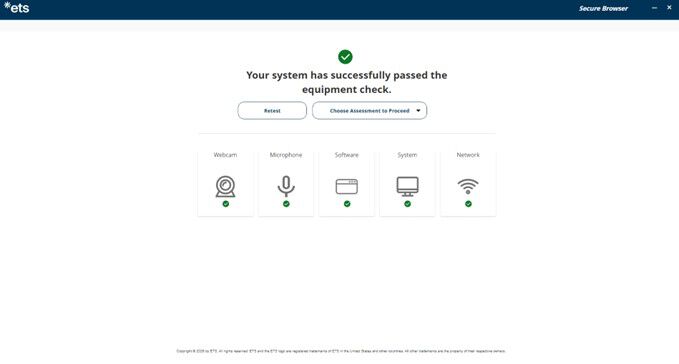
Run Your Equipment Check
Confirm your camera, mic & internet work perfectly
- Open the ETS Secure Browser → click Run Equipment Check.
- Confirm Speaker • Microphone • Camera • Network pass.
- If you see a red triangle, follow the fix tips or visit “Need Help.”
- Run the check at different times of day to catch bandwidth drops.

Prepare Your Testing Space
Do - Set Up Your Space Correctly
- Test in a private room, indoors, fully enclosed by walls with the door closed.
- Clear your desk — only your computer and note board allowed.
- Use good lighting so your face and ears are clearly visible.
- Sit on a standard chair at a desk or table.
Don’t - Avoid These Common Issues
- Don’t test in shared or open spaces.
- Don’t sit on a bed, sofa, or low surface.
- Don’t keep books, devices, or clutter in view of the camera.
Test Day Checklist
Before you start
- Login 30 minutes early from your confirmation email link.
- Have your ID, erasable note board, and mirror/phone ready.
- Good lighting: your face and ears must be visible on camera.
- Close all apps and disconnect extra devices from Wi-Fi.
- Follow your proctor’s instructions — they will start your test.
During the test
- Don’t talk to anyone except the proctor.
- Headsets are not allowed.
- For breaks: clock continues; return quickly.
Security & Permissions
Ensure your system is proctor-ready and secure.
- Disable screen-sharing and remote-access tools (Zoom, Teams, Grammarly, etc.).
- Grant browser permissions for camera, microphone, screen share.
- ETS monitors device reuse and location patterns — avoid shared machines.
- Violations can lead to score cancellation and future ban.
Step By Step Video Tutorials
Watch these short 1-minute videos covering everything from setup to scores and cancellation.

Chapter 1 - Introduction
Introduction to Praxis At-Home Testing – Overview of the process.
Chapter 2 - Pre-Test Procedures
Setting Up Your Test Environment – How to create a distraction-free space.
Chapter 3 - ETS Secure Browser
Downloading & Installing ETS Secure Browser & Systems Check
Chapter 4 - Testing Guidelines
Rules & Regulations During the Test – Key do’s and don’ts.
Chapter 5 - Connecting with Proctor
Connecting with Your Proctor & Check-In Process – What to expect during check-in.
Chapter 6 - Unscheduled Breaks
Taking Breaks & Managing Time – Guidelines for scheduled and unscheduled breaks.
Chapter 7 - After the Test session
Viewing Scores & Next Steps – How to access your results and what comes next.
Chapter 8 - Need any help??
Reach out to the customer support in case of any test day related issues.
-
No unauthorized items: mobile phones, notes, textbooks, or any personal recording devices are not allowed.
-
Disable all screen-sharing & remote-access apps (Zoom, Skype®, TeamViewer®, Microsoft Teams®, Apple Remote Desktop™, Grammarly, Spell check.)before the test and ensure they stay off and don’t auto-launch.
-
Only communicate with the proctor — no talking to anyone else during scheduled or unscheduled breaks.
-
No headsets allowed during at-home testing (ignore any references that suggest otherwise).
Unofficial scores
At Home Testing: If you test at home, your unofficial scores will be available onscreen.
Note: Printed copies of unofficial scores are not available for tests taken at home.
- Community-based Testing Center: If you test at a participating school district, institution or education service center, your unofficial scores will be available onscreen and can be printed at the end of your test.
More Information
Review the ParaPro® Tests Information Bulletin for:
- ID requirements
- Break policies
- Unofficial Scores
- Test-dismissal process
- For test-day support and technical help:
- Check your confirmation email
- Log in to your ParaPro account
Frequently Asked Questions
- Your ears must remain visible throughout the exam—hair, hats, or other coverings cannot block them. Religious headwear is permitted if ears remain visible.
- Face masks may not be worn during check-in or at any time during the test.
- Dress appropriately, as you will be monitored via camera by a proctor.
- Avoid wearing items such as large or ornate jewelry, tie clips, cufflinks, or decorative hair accessories.
Gather the materials you'll need for your test session. These include
a) passport or other acceptable ID;
b) acceptable note-taking materials, such as a whiteboard or plastic transparency sheet, that can be erased in view of the proctor; and
c) a cellphone or hand-held mirror for check-in.
All other materials are prohibited.
Checking in for your Praxis test at home will take about 20 minutes. Follow these steps for your appointment.
- Up to 15 minutes prior to your appointment time, you may begin your check-in. Refer to the instructions in your confirmation email or the home page of your account to begin your appointment. You'll have up to 12 minutes after your scheduled time to begin your check in. If you haven't checked in by that time, your test will be canceled, and your fee will not be refunded.
- Select "Start Check-in."
- Complete the Wheebox system check.
- Share your screen with the proctor.
- Take a photo of yourself and your identification (ID). The name on your ID must match the name on your account. The proctor will verify and approve your photo and ID.
- The proctor will review the exam rules.
- The proctor will ask you to show your ears and wrists and remove any jewelry.
- The proctor will ask you to use either a hand-held mirror or cell phone to show your computer screen.
- The proctor will ask you to use the camera on your computer to show a 360-degree view of the room, including your tabletop surface.
- The proctor will ensure the ETS Secure Browser is downloaded and launched.
- Immediately before beginning your test, you’ll walk through one more Equipment Check with the proctor, who will attempt to assist in troubleshooting any issues.
Unscheduled Breaks
ParaPro & ParaPathways tests do not include scheduled breaks.
You may take a short, unscheduled break, but:
- Your test clock will NOT stop.
- Return as quickly as possible.
What if I fail the Equipment Check?
- You must resolve all issues and pass the equipment check before checking in for your test. If you can't resolve the issues yourself.
- If you can’t resolve all issues before your test begins, your test will be canceled. You will not receive a refund, and you will have to pay to reschedule the test.
What can I do ahead of time to prevent issues?
- Run the equipment check from your ETS Secure Browser at the time of day you plan to test to make sure you don't have any bandwidth issues.
- Perform a final equipment check from your ETS Secure Browser shortly before your test session starts.
- Close all browsers and applications not needed for the test. Doing so can help prevent bandwidth issues while you test.
- Make sure any other devices in your household that use the internet are not running.
What if I have an issue right before my test starts?
- If you have technical issues immediately before your test, you may click here to get redirected to the support page and use Need Help icon to connect with an agent.
- Keep in mind that your equipment will be checked again right before you test. The test proctor will tell you if there are any issues and you’ll have an opportunity to resolve those issues before the test begins.
What if I have a technical issue and my start time is extended?
- This won't affect the amount of time you have to complete the test. The timer for your test doesn't begin until the proctor enters the password.
What if I have a technical issue during my test?
- If you have a technical issue during your test, speak and wave to get the proctor's attention. If you still have internet access but have been disconnected from the test, notify the proctor via the chat function.
What if I lose internet during the test?
- If you lose your internet connection momentarily, you'll automatically be reconnected to the proctor when your connection is restored. If your exam can be reopened, your proctor will do so for you.
- If you can’t reconnect to your test or the proctor, reinitiate the check-in process. If you are still unable to connect, click here to get redirected to the support page and use Need Help icon to connect with an agent.
- You may not take notes on regular paper, for security purposes.
- You may use one of the following to take notes:
- One small desktop whiteboard with erasable marker
- One sheet of paper inside a transparent sheet protector with an erasable marker
You'll be asked to erase all notes in view of the proctor at the end of the test